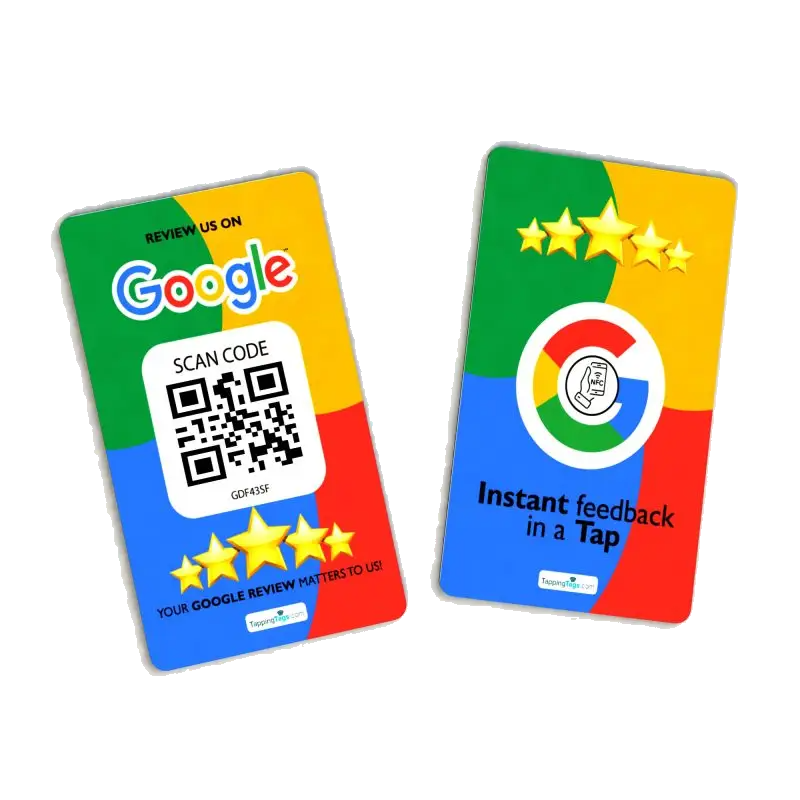
How to Set Up an NFC Review Card for Google
To set up an NFC review card, copy your Google Business Profile review link, save it as the destination on your Tappingtags NFC product, then test it by tapping a phone. The card opens your review page in the customer's browser, where they write and submit the review themselves. No app is needed on the customer's phone.
- Use your review link, not your Maps listing URL - the review link opens the star-rating box directly.
- The link is saved as the product's configured destination, so the card itself never needs re-printing when something changes.
- Test on a real iPhone and a real Android before the card goes on the counter.
- Keep the QR code as the fallback for phones with NFC switched off.
- The customer writes and submits the review themselves - nothing is posted for them.
Step 1: Get the exact Google review link
This is the step most business owners get wrong. Copying the URL from your Google Maps listing sends the customer to your listing page, where they then have to scroll, find "Reviews", and tap "Write a review". Every extra tap loses people.
You want the dedicated review link instead. Two reliable ways to get it:
- From your Google Business Profile. Sign in with the Google account that manages the listing, search your own business name on Google, and use the "Ask for reviews" option in the profile controls. It produces a short link in the form g.page/r/.../review. Copy that.
- From your Place ID. Look up your listing in Google's Place ID Finder, then build the link as search.google.com/local/writeareview?placeid=YOUR_PLACE_ID. This is the more durable option if you manage several locations.
Open the link in your own phone's browser first. You should land on the five-star box with your business name at the top. If you land on the listing instead, you have the wrong URL.
Step 2: Save the link as the card's destination
An NFC card does not store your reviews or your business details. It stores one thing: a web address. When a phone comes within a couple of centimetres, the phone reads that address and offers to open it.
With Tappingtags, the review destination is configured rather than permanently burned into the card, so you paste the Google review link you copied in Step 1 into the setup for that product and save it. That is the whole configuration. The physical card does not change, which matters later: if you move, rebrand, or want to send taps somewhere else, you change the destination, not the cards.
For reference, we are an independent product. Tappingtags is not affiliated with Google - the card simply opens the Google review page you chose.
Step 3: Test the tap on both phone types
Do not skip this. Test with the two phones your customers actually carry:
- iPhone: iPhone 7 and newer read NFC tags without an app on current iOS. The reader sits at the top edge of the phone, near the camera, not the middle of the back. A banner appears at the top of the screen and the customer taps it to open.
- Android: the reader is usually in the middle of the back. NFC must be switched on in settings - on most Androids it is on by default, but not all. The page typically opens straight away.
Tap, confirm the five-star box loads, then back out without submitting. Do that on both phones before the card goes out front.
Where to put the card so it actually gets used
Placement decides whether a review card earns its keep. NFC also behaves differently depending on what is underneath it.
| Placement | How it performs |
|---|---|
| Wood or laminate counter by the register | Best. Non-metal surface, and the moment of payment is when people are most willing. |
| Bare metal counter, metal shelf, metal till | Weak or dead. Metal detunes the antenna. Put a thin non-metal pad under the card. |
| Handed to the customer by a staff member | Strong. A spoken ask plus a card in hand beats a card sitting silently on a shelf. |
| Inside a wallet or invoice folder for a mobile trade | Good for home-service jobs in Coconut Creek where there is no counter at all. |
| Outdoor, wet, or in direct sun all day | Avoid where possible. South Florida humidity and heat are hard on any surface-mounted item. |
What the customer sees, start to finish
Tap, banner, browser opens your Google review page, five stars, type a sentence, submit. That is it. If they are already signed in to Google on that phone, which most people are, there is no login step.
Worth being clear with your staff about this: the customer writes their own words and presses submit themselves. Nothing is written or posted on their behalf.
When a tap does nothing
- NFC is off on that Android. Point at the printed QR code instead.
- Phone case is too thick or has a metal plate or magnet ring. Ask them to tap the top edge harder against the card, or use the QR.
- Wrong part of the phone. Top edge for iPhone, middle back for Android.
- Card sitting on metal. Lift it onto a card stock or plastic pad.
Those four cover nearly everything. This is exactly why every card should carry a QR code as well - it gives you a second route to the same page with zero extra setup.
Make the ask part of the handover
A card on a counter nobody mentions gets used rarely. One short line from staff changes that: "If today went well, would you mind tapping your phone here? It takes about ten seconds." Then hold the card out. That is the whole script.
Ready to set yours up? See how it works, compare the NFC review cards and QR review cards, then order your card and point it at your Google review link today. Local business owners in South Florida can see a setup walkthrough tailored to the area in our guide to custom NFC Google review cards in Coconut Creek.
Frequently Asked Questions
Sign in with the Google account that manages your listing, search your business name on Google, and use the "Ask for reviews" option to get a short g.page/r/.../review link. Alternatively build it from your Place ID using search.google.com/local/writeareview?placeid=YOUR_PLACE_ID.
No. Modern iPhones and Androids read NFC tags with no app installed, and the review page opens in the phone's normal browser.
Yes. The review destination is configured rather than permanently printed, so you can update the link without replacing the physical card.
Metal detunes the NFC antenna and blocks the read. Place a thin non-metal pad, card stock, or plastic plate under the card to fix it.
No. The card only opens your Google review page. The customer writes their own review and submits it themselves.