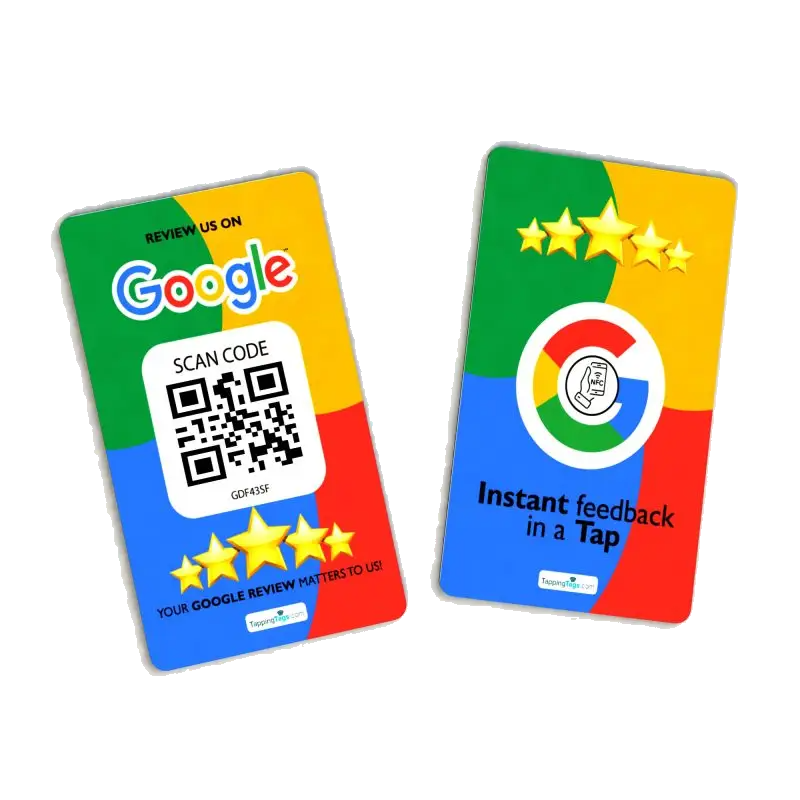
NFC Review Tap Card Setup for Coconut Creek
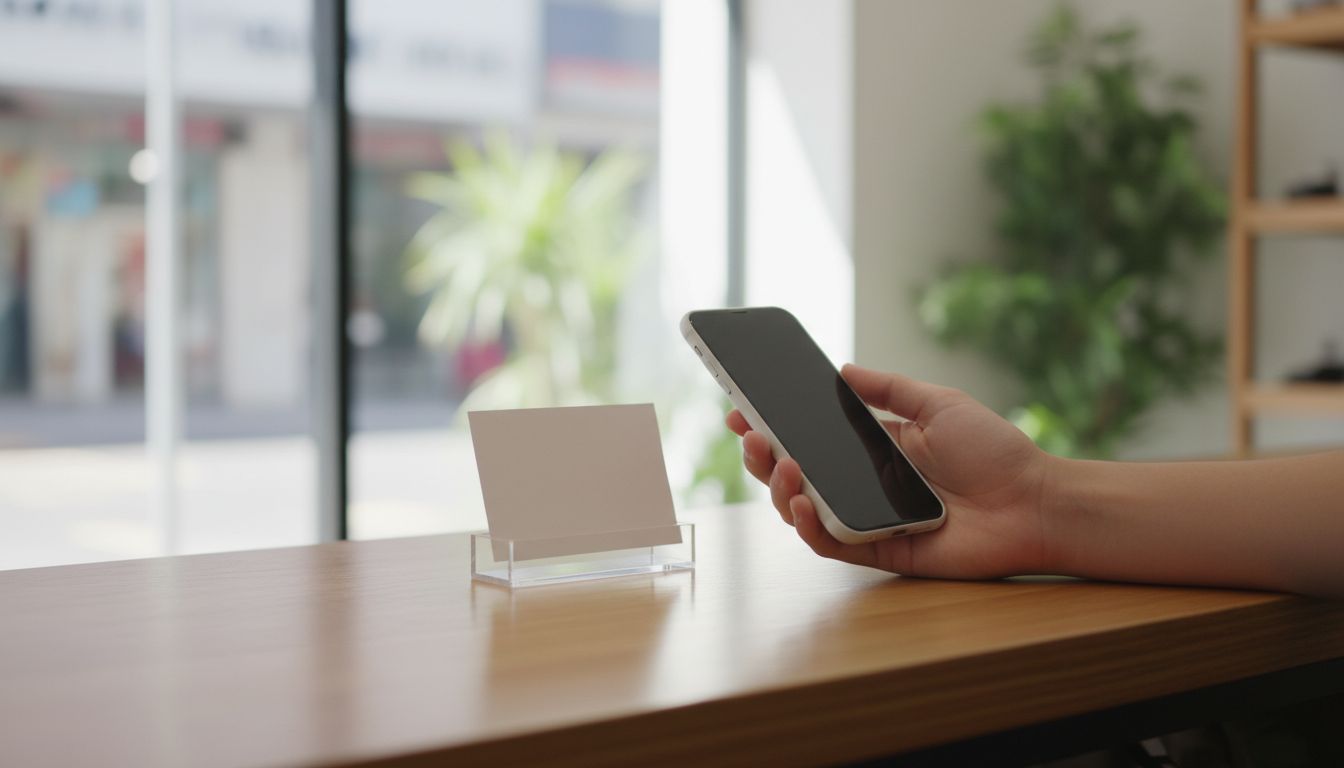
To set up an NFC review tap card for your Coconut Creek business, copy your Google review link from your Google Business Profile, configure that link as your Tappingtags product's review destination, tap your own phone to confirm it opens the review page, then keep the card at your checkout counter and ask customers to tap.
- Setup is three things: get the link, configure the link, test the tap. Nothing else is required to go live.
- Your review destination comes from your own Google Business Profile, not from us, so you keep full control of where taps land.
- Every Tappingtags product also carries a QR code, which covers customers whose phones will not read a tap.
- The customer still writes and submits the review themselves on Google. Nothing is posted for them or without their approval.
- Placement decides results: the card belongs where the customer is already standing still and already happy.
Step 1: Get the review link your card should open
An NFC review card is only as good as the destination it points to. For a Coconut Creek business collecting Google reviews, that destination is the "write a review" link from your own Google Business Profile.
Sign in to the Google account that manages your listing, open your Business Profile, and use the Ask for reviews option to copy the short share link Google generates for you. It usually looks like a g.page address ending in /review. Paste it into a note on your phone and open it once in your browser so you can see the review box appear with your business name at the top.
Two things to check before you move on:
- The link opens a review window for the correct location. If you have more than one address, each one has its own link.
- It lands on the review form, not your general listing or a map pin. A link to the listing alone adds a step and loses people.
Tappingtags is an independent product company and is not affiliated with Google. We supply the tap and QR hardware and the configuration around it; the review link and the listing stay yours.
Step 2: Configure that link as the card's destination
Your Tappingtags product is a physical NFC and QR item with a configurable review destination. Setup means telling the product which link to open. You paste in the Google review link you just copied, save it, and the card is live.
Because the destination is configurable rather than burned in, you are not locked to one choice forever. If you move locations inside Broward, rebuild your listing, or decide to send taps somewhere else later, you change the link, not the card. See how the tap works for the mechanics, or ask us for setup guidance if you would rather have someone walk the link through with you. For a closer look at pointing both the tap and the QR code at the same destination, see our guide to Review Link Setup for NFC and QR in Coconut Creek.
Step 3: Test the tap before any customer sees it
Do not skip this. Test with at least two different phones, ideally one iPhone and one Android, because they read tags from different spots on the body.
- iPhone: screen on and unlocked, hold the top edge of the phone flat against the card. A banner appears; tapping it opens the review page.
- Android: make sure NFC is switched on in settings, then hold the middle of the back of the phone to the card.
- Either phone: scan the QR code with the camera and confirm it reaches the same review page.
If the tap opens the right review form on both phones and the QR does the same, you are finished with setup.
Setup at a glance
| Stage | What you actually do | Typical effort |
|---|---|---|
| Get the link | Copy the "write a review" link from your Google Business Profile | A few minutes, once |
| Configure the product | Paste that link in as the review destination and save | A few minutes, once |
| Test | Tap an iPhone, tap an Android, scan the QR | Minutes, before first use |
| Place it | Counter, reception desk, or handed over at the end of the job | Ongoing habit |
| Change the link later | Update the destination; the card stays the same | Minutes, any time |
Where to put the card in a Coconut Creek shop
Placement is the part most owners get wrong. The card should sit where the customer is stationary, unhurried, and already pleased.
- Retail and quick-service counters: next to the card reader, angled toward the customer, not flat where it disappears into the clutter.
- Salons, clinics, studios: at the front desk during checkout, when the result is fresh.
- Mobile trades and home services: carry it and present it at the end of the visit, while you are standing with the finished work.
- Restaurants and cafes: with the check, or on the table caddy where people wait.
In a market like Coconut Creek, where a lot of buying decisions get made from a phone in a parking lot off Lyons Road or Sample Road, the review count a stranger sees is doing real work for you. A card at the counter is simply the shortest path between a happy customer and that count.
What the customer experiences
The tap opens Google's own review screen on the customer's phone. They choose the rating, they write the words, they press post. Nothing is submitted for them, nothing is pre-written on their behalf, and nothing appears without their approval. The card removes the search-and-scroll friction; it does not touch the review itself.
That also means we cannot promise what gets written, how many reviews arrive, or what your rating becomes. Those outcomes depend on your service and on how consistently your team asks. What a tap card controls is the one step you can control: making the ask effortless.
Three setup mistakes worth avoiding
- Pointing the card at your website or Facebook page instead of the review form. Every extra click costs completions.
- Never testing on Android. NFC can be switched off at the system level, and an untested card looks broken to the customer.
- Setting it up and never asking. The card works when a staff member says one sentence: "If today went well, would you tap here?"
For customers who already left
Not every review happens at the counter. Our SMS/text messaging service lets you send the same review link to a customer after the fact, so a follow-up text and the card on the counter point to the identical destination.
Ready to set one up?
Bring us your Google review link and we will have your product pointed at it. Browse our NFC review cards and then order a review tap card for your Coconut Creek location.
Frequently Asked Questions
Copy the "write a review" link from your Google Business Profile, configure that link as your Tappingtags product's review destination, then tap your own phone to confirm it opens the review page before any customer uses it.
Sign in to the Google account that manages your listing, open your Business Profile, and use the Ask for reviews option to copy the short share link it generates for your location.
Every Tappingtags product also carries a QR code that opens the same review destination, so the customer can scan it with their camera instead.
Yes. The review destination is configurable, so you update the link and keep using the same physical card.
No. The tap opens Google's own review screen, and the customer writes, rates, and submits the review themselves. Nothing posts without their approval.