Can You Reprogram an NFC Review Card After Ordering?

Yes. An NFC review card is not a one-way product that locks in whatever link you had on the day you ordered. Tappingtags cards and QR products open a configured review destination, and that destination is part of your setup rather than something stamped permanently into the card itself. If the place you want customers to land changes - a new review profile, a different platform, a rebrand, a second location - the link your card opens can be updated, and you keep using the same physical card you already have.
- The review destination your card opens is configurable, so it can be changed after you have ordered and received it.
- You do not need to reorder cards just because your review link changed.
- Common reasons to update: a new review profile, switching platforms, a business name change, or adding a location.
- Tappingtags provides setup guidance, so you are not left guessing how to point the card at the right page.
- Contact Tappingtags through tappingtags.com with the exact destination you want the card to open.
Why People Ask This Before They Order
Most Coconut Creek business owners asking this question are weighing a very practical risk. They have a stack of cards on the way, or already sitting by the register, and they are picturing the moment something changes - a new review page, a different platform priority, a name on the door that is not the same name as last year.
The worry is reasonable. Printed material usually goes out of date the moment a detail shifts. The useful thing to understand about an NFC review card is that the card and the destination are two separate things, and only one of them is physical.
The Card Is the Hardware, the Link Is the Setting
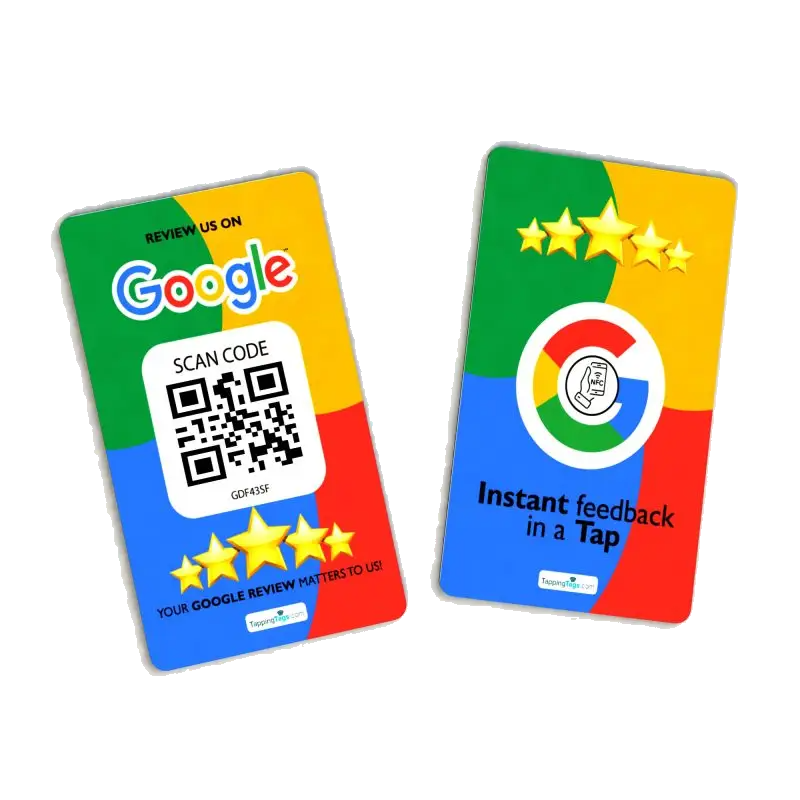
A Tappingtags NFC or QR product is a physical item that opens a configured review destination when a customer taps or scans it. The configuration is the part that decides where that tap lands.
That separation is the whole answer to this question. Because the review link is a configurable setting rather than something baked into the plastic, updating where the card points does not require a new card, a new print run, or a new order.
- The card - the physical NFC or QR product you ordered and hold in your hand.
- The destination - the review page you want a customer to land on, set up as part of your configuration.
- The change - updating that destination, which is a setup change, not a reorder.
So when someone asks whether they can "reprogram" the card, the honest framing is that you are usually not reprogramming hardware at all. You are changing where an already-working card sends people.

When Business Owners Actually Need to Change the Link
This is not a rare edge case. In a market like Coconut Creek, where a single plaza can hold a salon, a dental office, a restaurant and a contractor's front desk, the reasons come up constantly.
| What you want to change | When this usually happens |
|---|---|
| A new or corrected review profile link | Your profile was rebuilt, verified, or the original link was wrong |
| A different review platform | Your priority shifts from one review site to another |
| A rebrand or legal name change | New business name means a new profile to collect reviews on |
| A move or a second location | Each location needs customers landing on its own review page |
In every one of those situations, the cards you already paid for stay useful. That is the real value of a configurable destination: your hardware outlives your current link.
How to Get the Link Changed
Keep it simple. The faster you can hand over the exact destination, the faster the change is clean and correct.
- Decide the exact destination. Open the review page you want customers to land on and copy that link directly, rather than describing it from memory. If you are pointing the card at Google reviews for the first time, our guide on how to set up an NFC review card for Google Business Profile walks through getting that destination link right before you request the change.
- Confirm which cards it applies to. If you have cards split across locations or staff, say which ones should point to the new destination.
- Contact Tappingtags with the change. Reach out through tappingtags.com with the link and the cards involved.
- Test it the way a customer would. Tap or scan with a phone that is not the one you set it up on, and check that you land where you expect.
That last step is the one people skip, and it is the cheapest insurance you have. A ten-second test at the front desk tells you more than any screenshot.
What a Changed Link Does and Does Not Affect
Changing the destination does not change how the card behaves physically. A tap is still a tap and a scan is still a scan. Your staff do not need retraining, and you do not need to pull cards out of circulation while the change is made.
It also does not change anything about the customer's own choice. The card opens a review page - writing and submitting a review is entirely the customer's decision, and nothing is posted on their behalf or without their approval. The card simply makes it easier for someone who already wants to leave a review to find the right page instead of hunting for it.
Practical Advice Before You Order
Because the destination is configurable, you do not have to get everything perfect before ordering. Still, a little care up front saves you a change request later.
- Verify your review profile exists and is claimed before you order, so you are pointing at a live page.
- Use the link from the profile itself, not a search result page or a shortened link you cannot verify.
- Think about locations now. If you run two addresses, decide early whether both should share one destination.
- Keep a note of what each card points to. Six months later, that note is worth a lot.
Tappingtags also offers setup guidance and an SMS/text messaging service alongside the physical products, so the card is not the only way to put your review link in front of a customer who has just had a good experience.
Ready to Update Where Your Card Points?
If you already have cards and the destination needs to change, you do not need to reorder anything. Get in touch with Tappingtags at tappingtags.com with the exact review link you want your cards to open, and get the configuration updated on the cards you are already using.
Frequently Asked Questions
Yes. Tappingtags NFC and QR products open a configured review destination, and that destination can be updated after you order. The link is part of your setup rather than something permanently fixed into the physical card, so you can change it without ordering new cards.
No. Because the review destination is configurable, a change of link is a setup change rather than a reprint. The cards you already have keep working and simply start opening the new destination.
Have the exact destination link copied directly from the review page you want customers to land on, and know which cards the change applies to if you have more than one set. That makes the update faster and avoids pointing at the wrong page.
No. A tap or scan behaves exactly the same way, so your staff do not need to do anything differently. The only difference is the page the customer lands on.
No. The card opens a review page, and whether to write and submit a review is entirely the customer's decision. Nothing is posted without the customer's approval.