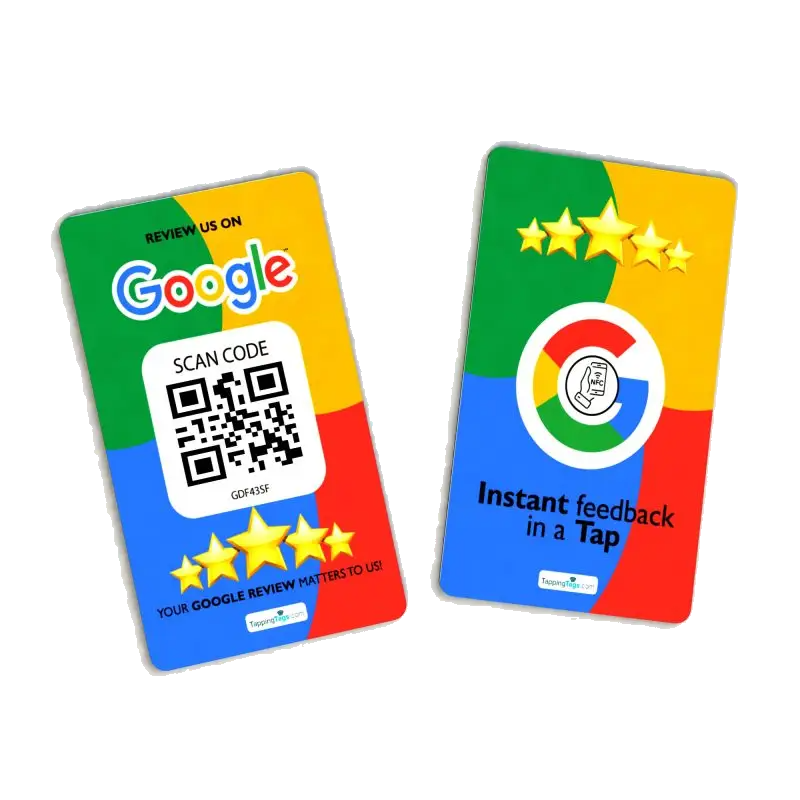
Why Your NFC Review Card Won't Open on iPhone
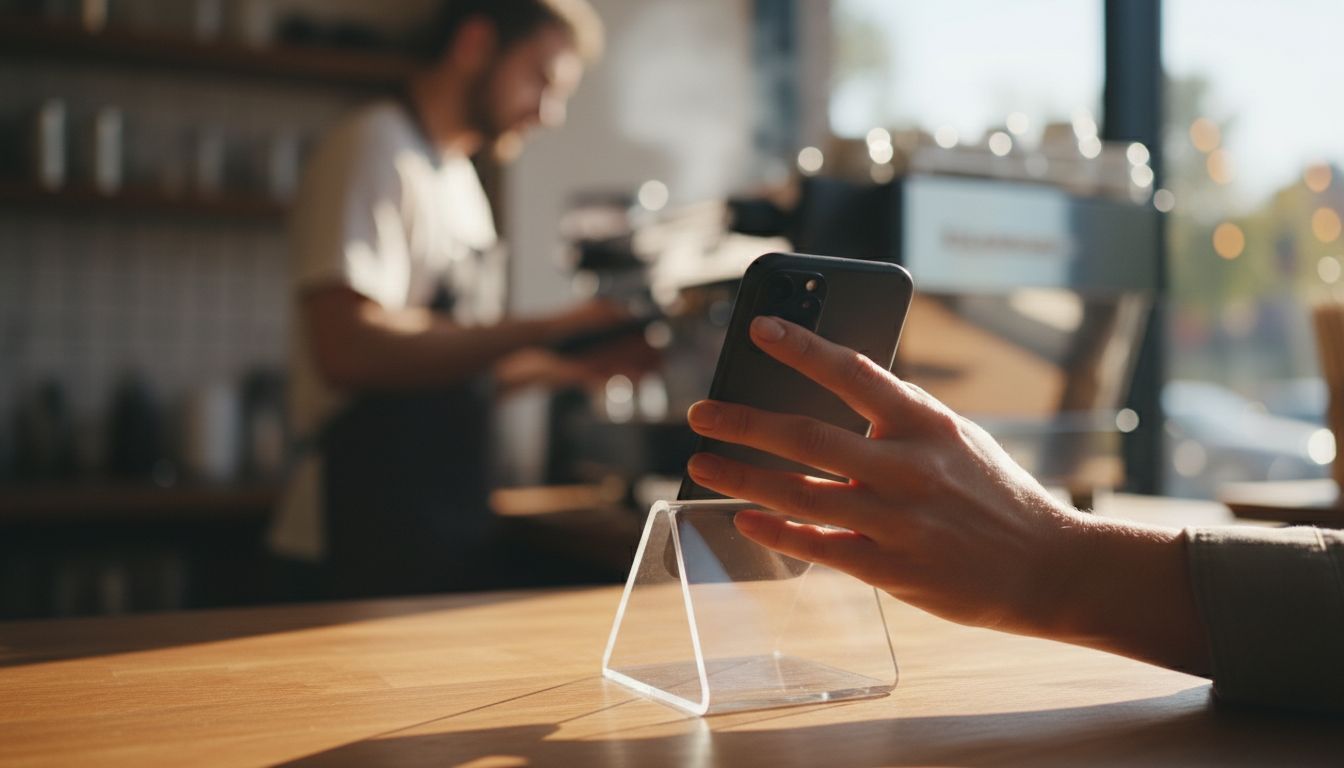
If you tapped your NFC review card on an iPhone at your Coconut Creek front counter and nothing opened, the card is usually fine. On iPhone, a tap never opens a link on its own - it drops a notification banner at the top of the screen that the customer has to tap. The phone also has to be awake and unlocked, and the top edge of the iPhone has to meet the card. Miss one of those three and the tap looks dead.
- iPhone shows a banner after a tap - someone must tap that banner to open the review page.
- The phone must be unlocked with the screen on, and the top edge needs to touch the card.
- iPhone XS and newer read tags in the background; iPhone 7, 8 and X need the Control Center NFC Tag Reader.
- Metal under the chip, thick cases and MagSafe wallets are the usual physical blockers.
- If the banner appears but the page is wrong, the problem is the link on the chip, not the chip.
What an iPhone does when it reads a tap-to-review card
Your card holds a short web address - your review page - written to the chip as an NDEF URL record. When a supported iPhone comes within about an inch of the chip, iOS reads it and posts a banner with the site name.
That banner is the whole handoff. If the customer sets the phone down, swipes the banner away, or waits a few seconds, it fades and the review page never loads. People then report that the card "did not work" when it worked exactly as designed.
This is why staff coaching matters as much as hardware. One sentence - "tap your phone here, then tap the banner at the top" - clears up most complaints on the spot.
Run this six-step check before you blame the card
- Wake and unlock the phone. Background tag reading only runs with the screen on and the phone unlocked. A locked or black screen reads nothing at all.
- Tap with the top edge. The NFC antenna sits at the top of the back, near the rear camera. Laying the middle of the phone flat on the card is the most common physical mistake.
- Close Camera, Wallet and Apple Pay. An open camera or an active payment session takes over the radio and suppresses the tag banner.
- Turn off Airplane Mode. It disables background tag reading, and the link needs mobile data or Wi-Fi to load anyway.
- Remove the obstruction. Thick cases, metal or metal-plated cases, a MagSafe wallet, or a stack of credit cards between the phone and the chip will all block the read.
- Hold still for two seconds. A quick swipe past the card is often too fast. Steady contact, then wait for the banner to appear.
Which iPhones can read your card
Not every iPhone behaves the same way, which explains most "it works for me but not for her" moments:
- iPhone XS, XR and newer: read tags in the background. Unlock, tap, banner appears.
- iPhone 7, 8 and X: no background reading. The customer opens the NFC Tag Reader from Control Center first, then taps.
- iPhone 6s and older: cannot read NFC tags at all. These phones need a printed QR code instead.
You cannot control which phone walks through your door, so every placement should offer a scannable fallback. A combined nfc google review card covers both habits with one piece on the counter.
Where the card sits changes whether it reads
NFC is sensitive to what sits behind it. A tag stuck flat to a metal counter, a steel register surround or a metal menu holder detunes the antenna and the read range collapses. Lifting the chip off the metal - with a ferrite-backed tag, a non-metal base, or a freestanding google review stand - brings it back.
Coconut Creek adds a second variable. A lot of tapping here happens on outdoor patios and shaded sidewalk seating, where sun, heat and summer humidity work on adhesives much harder than an air-conditioned counter does. A sticker that has lifted at one corner sits at an angle nobody can tap cleanly, so check outdoor placements more often than indoor ones.
Quick diagnosis table
| What you see | Likely cause | Fix |
|---|---|---|
| Nothing happens at all | Phone locked, screen off, or an iPhone 6s or older | Unlock and retry, or point to the QR code |
| Banner shows, page never loads | The banner faded before anyone tapped it | Ask the customer to tap the banner at the top |
| Works on Android, not iPhone | Tapping the middle of the phone instead of the top edge | Touch the top of the phone to the card |
| Worked last week, not today | Card moved onto metal, or the adhesive lifted | Remount off metal or switch to a freestanding stand |
| Opens the wrong page | Text record instead of a URL, or a bad review address | Rewrite the chip with a full https review link |
Then check the link itself
If the banner appears and the page still fails, the fault has moved from the chip to the destination.
- The chip must hold a URL record. A plain text record stores your address as words and opens nothing.
- The address should start with https, with no typos and no trailing characters.
- Paste the address into a browser on its own. If it lands on a general map result instead of the review window, the underlying place reference is wrong.
Rebuilding the address correctly is quick with our google review link generator, and it is worth doing before you reprogram a whole batch of cards.
Tap-to-review help for Coconut Creek businesses
TappingTags supplies NFC and QR cards, tags and stands that open your configured review page with a tap or a scan, and we serve Coconut Creek, FL. We are an independent supplier and not affiliated with Google. Your customer always writes and submits their own review in their own words.
If your current card is failing on iPhones, work through the six steps above first - most counters are fixed in under a minute. If it still will not read, browse our cards, tags and stands and get a setup that stays put on your counter or patio table. For a full walkthrough of writing a new card correctly, see our guide on how to set up an NFC review card for Google.
Frequently Asked Questions
Because iOS does not open NFC links automatically. The tap produces a notification banner at the top of the screen, and someone has to tap that banner within a few seconds or it fades. Tell staff to say "tap your phone here, then tap the banner at the top" and this stops being an issue.
No. iPhone XS, XR and newer read NFC tags in the background with no app installed, as long as the phone is unlocked and the screen is on. Older models - iPhone 7, 8 and X - need the NFC Tag Reader opened from Control Center first, and iPhone 6s and older cannot read tags at all.
Almost always the tap position. Android phones usually have the NFC antenna near the middle of the back, while iPhone places it at the top edge near the rear camera. Touch the top of the iPhone to the card and hold it steady for about two seconds.
Check what is now underneath it. A chip resting flat on a metal counter, register surround or metal holder loses almost all of its read range. Move it onto a non-metal surface, use a ferrite-backed tag, or switch to a freestanding acrylic stand that keeps the chip clear of metal.
Use the banner as your divider. If no banner appears, the problem is physical - the phone, the case, the tap position or metal behind the card. If the banner appears but the page is wrong or blank, the problem is the address written to the chip, so test that address in a browser and rewrite it if needed.